
Graphics Deep Dive: GPUs, Displays, and Visual Workloads
Understand graphics hardware in plain English: what GPUs accelerate, how VRAM and display links change the experience, how drivers fit in, and how to choose or troubleshoot graphics upgrades.
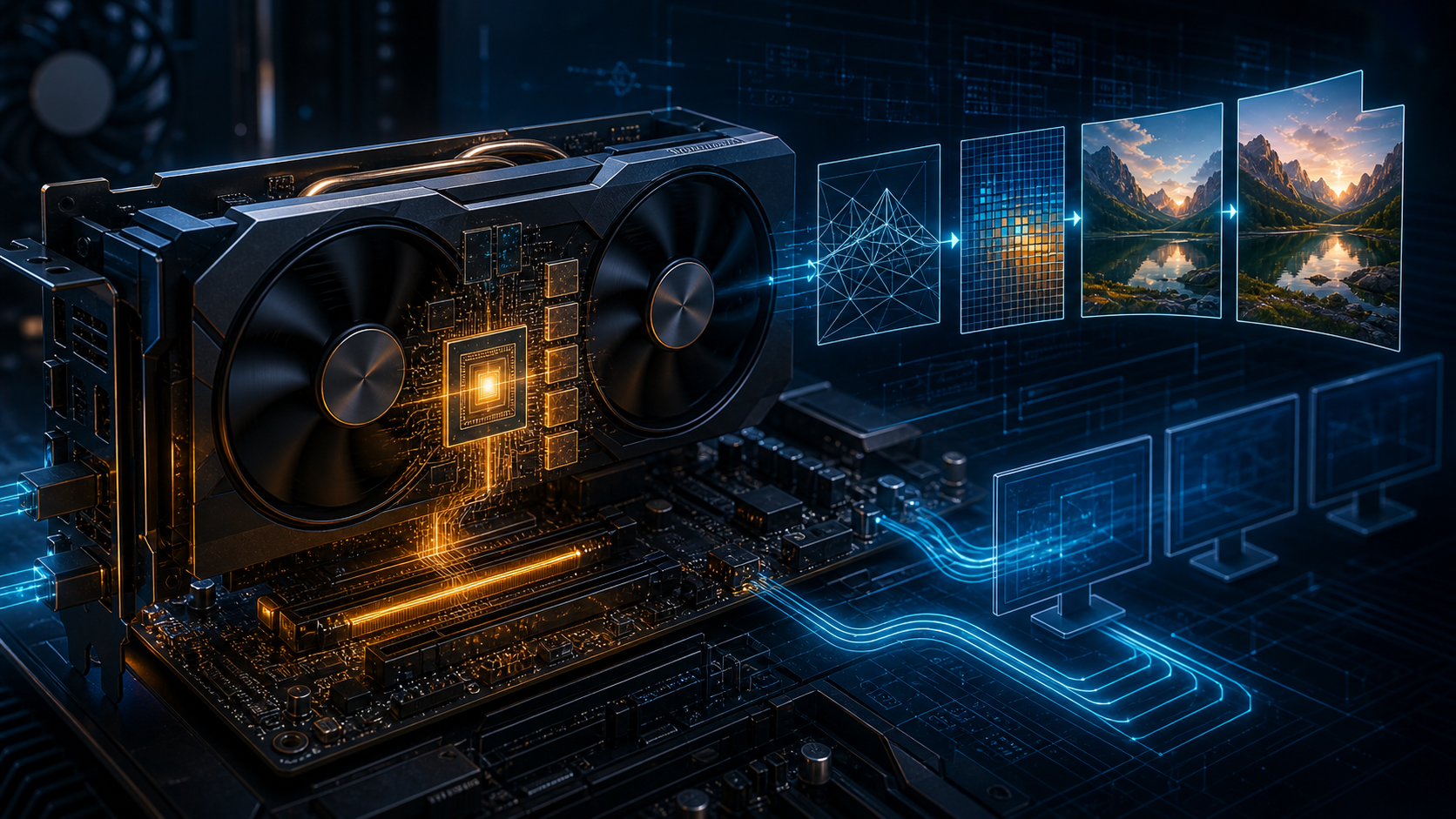
- Modules
- 6
- Progress
- Not started
- Assessments
- 11
- Estimated Hours
- 4
Sign in to save progress.
Module 1
Module 1: GPU Big Picture
Build a simple model of what graphics hardware does.
1.1 The GPU as a visual work crew
Use a work-crew analogy to explain graphics acceleration.
Quick Check: graphics big picture
Check your model of CPU, GPU, and VRAM responsibilities.
1.2 Workloads that use graphics differently
Separate gaming, creator, display, and compute graphics needs.
Practice: Match a graphics need to the right concern
Answer auto-graded scenario checks about GPU workload fit.
Module 2
Module 2: GPU Hardware Inside the Card
Understand VRAM, bandwidth, outputs, cooling, and power.
2.1 Cores, VRAM, memory bus, and bandwidth
Learn why graphics cards are more than a chip name.
Quick Check: GPU card hardware
Check how card specifications connect to real support decisions.
2.2 Encoders, ray tracing, and specialized blocks
Understand why feature support matters for some graphics recommendations.
Practice: Read a graphics card spec sheet
Use auto-graded checks to interpret realistic GPU specifications.
Module 3
Module 3: Displays, Cables, and Output Links
Connect display goals to ports, cables, and monitor settings.
3.1 Resolution, refresh rate, and color basics
Translate display language into practical setup checks.
Quick Check: display chains
Check how ports, cables, and settings affect display output.
3.2 HDMI, DisplayPort, USB-C, and adapters
Separate connector shape from actual link capability.
Practice: Fix a missing display mode
Choose auto-graded next checks for display output problems.
Module 4
Module 4: Drivers and Graphics Troubleshooting
Diagnose common display and GPU failures methodically.
4.1 Drivers, control panels, and update discipline
Understand how graphics drivers sit between hardware and apps.
Quick Check: graphics drivers
Check driver purpose and update judgment.
4.2 Artifacts, black screens, and instability
Learn a safe order for common graphics symptoms.
Practice: Graphics symptom triage
Answer auto-graded checks about graphics troubleshooting order.
Module 5
Module 5: Graphics Selection and Upgrade Planning
Balance performance, fit, power, cooling, and user needs.
5.1 Picking the right graphics upgrade
Recommend graphics hardware by matching the user need to the whole platform.
Quick Check: graphics upgrade planning
Check fit, power, display, and workload planning.
5.2 Validate a graphics change
Test displays, drivers, thermals, stability, and workload results after an upgrade.
Practice: Graphics upgrade recommendation
Answer auto-graded checks about a balanced graphics upgrade.
Module 6
Course Review
Review graphics concepts and complete the final quiz.